In late 2025, Meta Quest users received a major boost to their entertainment options with the official launch of the Disney+ app. Released on December 15, 2025, in the United States (with international rollouts, including expansions like Canada in early 2026), this native app brings Disney’s vast library of Marvel, Star Wars, Pixar, and more directly to Quest headsets. What truly sets this integration apart is support for premium audiovisual features: Dolby Vision HDR for stunning visuals and Dolby Atmos for immersive audio—turning your VR headset into a personal, high-end cinema.
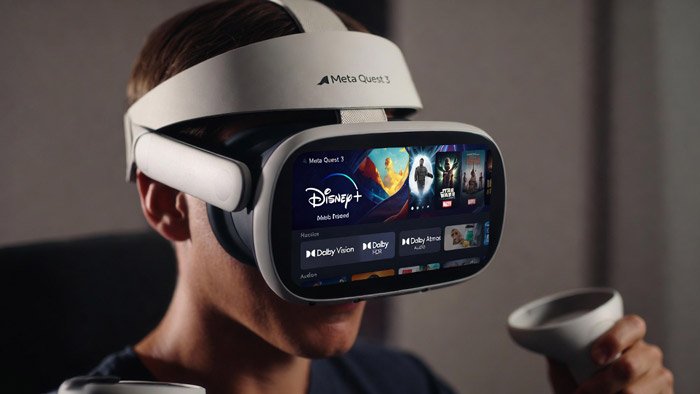
Whether you’re lounging on a virtual big screen or escaping into a movie during travel, these enhancements make streaming on Quest feel more cinematic than ever. Here’s a deep dive into how Dolby Vision and Atmos elevate the experience, plus practical tips to get started.
What Is the Disney+ App on Meta Quest?
The Disney+ app is now available in the Meta Horizon Store for Quest 2, Quest 3, and Quest 3S headsets. It allows subscribers to stream the full catalog in 2D, with options for offline downloads (ideal for flights or commutes) and high-quality playback.
Key highlights from the launch:
- Resolution and HDR: Up to 4K UHD with Dolby Vision HDR on select titles (primarily on Quest 3 and 3S).
- Audio: Immersive Dolby Atmos spatial sound for Premium subscribers.
- No 3D support: Content streams in 2D only—no native 3D movies yet, despite some user hopes.
- Subscription tiers: Basic access works with any Disney+ plan, but Dolby Vision HDR is available to all U.S. subscribers on compatible devices, while Dolby Atmos requires the Premium tier.
This follows Horizon OS updates (like v71) that added broader Dolby Atmos compatibility across Quest headsets, making the timing perfect for Disney+’s arrival.
How Dolby Vision HDR Transforms Your Viewing Experience
Dolby Vision is an advanced HDR format that delivers superior color accuracy, brightness, contrast, and dynamic range compared to standard HDR10. On Quest 3 and 3S (which are Dolby-enabled), select Disney+ titles—like blockbuster Marvel films or Pixar animations—look incredibly vibrant.
Benefits in VR:
- Deeper blacks and brighter highlights: Explosions in Star Wars or colorful scenes in Encanto pop with lifelike detail, reducing the “washed-out” feel some VR streaming apps have.
- Scene-by-scene optimization: Dolby Vision adjusts dynamically, so dark horror sequences stay moody while bright outdoor shots burst with realism.
- Personal theater immersion: Pair it with Quest’s virtual environments (via Horizon TV or the app’s theater mode) for a giant curved screen that feels private and enveloping.
Note: Quest 2 supports the app but lacks full Dolby Vision HDR due to hardware limits—stick to Quest 3/3S for the best visuals.
Dolby Atmos: Spatial Audio That Puts You in the Scene
Dolby Atmos takes surround sound to the next level with object-based audio, placing sounds above, behind, and around you in 3D space. On Quest headsets with built-in spatial audio drivers, this creates a truly immersive bubble of sound.
Why it shines on Meta Quest:
- Rain falling around you in a movie storm, or spaceships zooming overhead in Star Wars, feel directional and realistic.
- Dialogue stays crisp in the center while effects envelop you—no need for external speakers.
- Combined with Quest’s passthrough or virtual room setups, it blurs the line between watching and being there.
Premium subscribers unlock Atmos on supported titles, enhancing everything from action epics to orchestral scores in Disney classics.
Step-by-Step: How to Set Up and Watch Disney+ on Your Meta Quest
Getting started is straightforward:
- Put on your Quest headset and ensure it’s updated to the latest Horizon OS.
- Open the Meta Horizon Store (search for “Disney+” if needed).
- Download and install the Disney+ app (free).
- Launch the app and log in with your Disney+ credentials.
- Browse and play: Select a title—look for Dolby Vision/Atmos badges on compatible content.
- Optimize settings: In the app or Horizon TV, choose a virtual theater environment for the biggest screen feel. For offline viewing, download titles via the app (Premium feature).
- Audio tip: Use Quest’s built-in speakers or pair Bluetooth headphones for even better Atmos (though built-in spatial audio works great standalone).
For the full Dolby experience:
- Quest 3/3S recommended.
- Disney+ Premium subscription for Atmos and downloads.
- Stable Wi-Fi for streaming (or download ahead).
Why This Matters for VR Entertainment in 2026
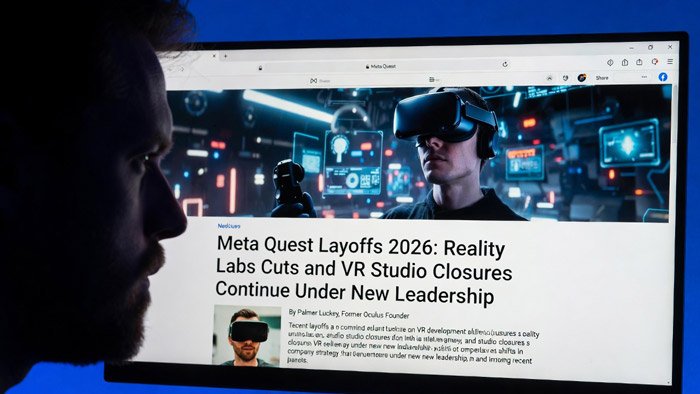
Amid shifts in Meta’s VR focus, strong media apps like Disney+ keep Quest relevant as an all-in-one device—not just for gaming, but for movies, shows, and relaxation. The Dolby enhancements bridge the gap between flat-screen streaming and true immersion, making long-haul flights or cozy evenings feel luxurious.
More updates are teased for 2026, so expect potential expansions like additional features or broader international support.
Have you tried Disney+ on your Quest yet? The combination of Dolby Vision’s visual punch and Atmos’ 3D sound makes favourites like The Mandalorian or Inside Out 2 feel fresh in VR. Share your thoughts in the comments!