Are you struggling with Meta Quest PC Link not working after the January 2026 software update? You’re not alone—many users report connection failures, infinite loading screens, and error messages like “Meta Quest Link isn’t working correctly.” This guide covers proven fixes for Meta Quest 3, Quest 2, and Quest Pro headsets, drawing from official Meta updates and community solutions. Whether it’s a wired Oculus Link or wireless Air Link issue, we’ll help you get back to seamless PC VR gaming.
Understanding the Common PC Link Problems in 2026
The latest Meta Quest updates, including v83 and v85, have introduced bugs affecting PC connectivity. Users often encounter:
- Infinite loading screens: The three-dot loading animation loops endlessly when launching Link.
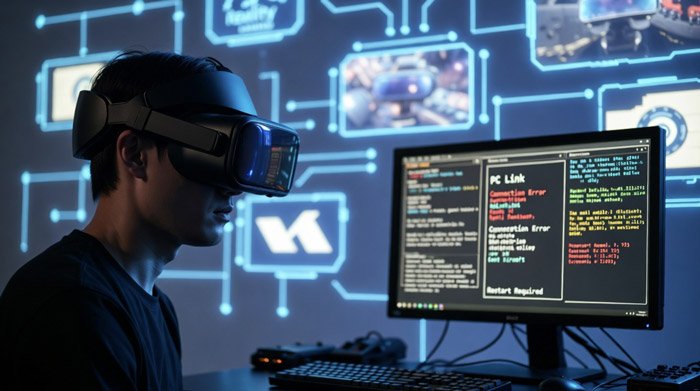
- Connection errors: Messages like “Meta Quest Link isn’t working correctly” or “Only supported on local network.”
- Performance issues: Stuttering, low bitrate limits (e.g., capped at 450-500 Mbps post-update), or failure to detect the headset.
- Air Link specifics: Wireless connections failing due to network conflicts or post-update incompatibilities.
These problems surged around January 18-19, 2026, coinciding with Windows 11 cumulative updates and Meta’s firmware rolls. Meta has acknowledged some issues and released patches, but not all are resolved yet.
GAMERS use discount code VRCGUY for discounts on your Meta Quest game downloads.
If you’re worried about broader Meta VR changes, check our analysis on Is Meta Abandoning VR? Analyzing the Shift from Metaverse to AI in 2026, which discusses how these updates fit into the company’s evolving strategy.
Basic Troubleshooting Steps for Meta Quest PC Link
Start with these quick fixes before diving deeper. They resolve up to 70% of issues based on user reports.
- Restart Everything: Power cycle your Meta Quest headset, PC, and router. Hold the power button on your Quest for 30 seconds to force a reboot.
- Update Software: Ensure your Meta Quest app, headset firmware, and GPU drivers are current. Download the latest from Meta’s site or through the app—v83 includes a fix for launch issues.
- Check Cables and Ports: For wired Link, use a USB 3.0 cable (Meta’s official or Anker equivalents). Rotate the USB-C end and try different ports. Avoid hubs.
- Disable Conflicting Software: Temporarily turn off antivirus, firewalls, or VPNs that might block connections.
- Network Settings: Set your PC’s network to “Private” instead of “Public” in Windows settings. For Air Link, ensure both devices are on the same 5GHz Wi-Fi band.
If these don’t work, repair the Meta Quest PC app via its installer—select “Repair” to fix corrupted files.
Advanced Fixes for Persistent Meta Quest Link Errors
For stubborn issues post-2026 update, try these targeted solutions.
Internet Workaround for Launch Failures
A common bug prevents Link from starting if your PC is online. Here’s the fix:
- Disconnect your PC from the internet (unplug Ethernet or disable Wi-Fi).
- Launch Meta Quest Link and connect your headset.
- Once connected, re-enable internet.
This bypasses a telemetry check that’s failing in recent updates.
Firewall Block for OculusDash.exe
For a permanent solution without disconnecting each time:
- Open Windows Defender Firewall with Advanced Security.
- Create a new Outbound Rule.
- Select “Program” and browse to C:\Program Files\Meta Horizon\Support\oculus-dash\dash\bin\OculusDash.exe (or your install path).
- Block the connection for all profiles.
- Name the rule and finish.
This stops the executable from causing conflicts while keeping your PC online.
Reinstall and Clean Up
- Uninstall the Meta Quest app, delete residual files (e.g., in AppData), and reinstall.
- Clean reinstall GPU drivers using DDU (Display Driver Uninstaller).
- As a last resort, factory reset your Quest headset via settings.
Tools like the Quest Link Fixer script on GitHub can automate process termination for quick relief.
Amid these technical hiccups, it’s worth noting the bigger picture with Meta’s recent changes—read our piece on Meta Quest Layoffs 2026: What the Reality Labs Cuts Mean for VR Gamers to see how support might evolve.
Alternatives If Fixes Fail
If PC Link remains broken, switch to:
- Virtual Desktop: A paid app with better wireless performance.
- Steam Link: Free alternative for Steam VR titles.
- Standalone Quest mode: Play native apps while waiting for Meta’s hotfix.
For enterprise users, note that these issues might tie into the Meta Quest for Business Shutdown: End of Commercial VR Support Explained, shifting focus to consumer tools.
When to Contact Meta Support
If nothing works, gather logs from the Meta Quest app (under Help > Collect Logs) and submit a ticket via the Meta Community Forums or help.meta.com. Mention your update version (e.g., v83) and exact error. Community threads show Meta is actively monitoring and patching.
Looking ahead, rumors suggest smoother integrations in future hardware—explore Meta Quest Project Phoenix: Leaks and Rumors for the 2027 Lightweight Headset for what’s next.
Conclusion: Get Back to VR Quickly
Fixing Meta Quest PC Link issues after the 2026 update is often straightforward with restarts, updates, or the internet workaround. By following these steps, you can minimize downtime and enjoy immersive PC VR again. Stay tuned to MetaQuestNews.com for more troubleshooting guides and VR updates—Meta’s ecosystem is evolving, but with the right fixes, your Quest remains a powerhouse.
For Discount codes for Meta Quest goto MetaQuestCodes.com